
Checkbox
Checkboxes are used to select items from lists or Tables, and to enable/disable settings or features. Unlike Switch, checkboxes typically require confirmation (such as pressing a "Save" Button) before changes take effect, while Switches apply changes immediately.



Anatomy
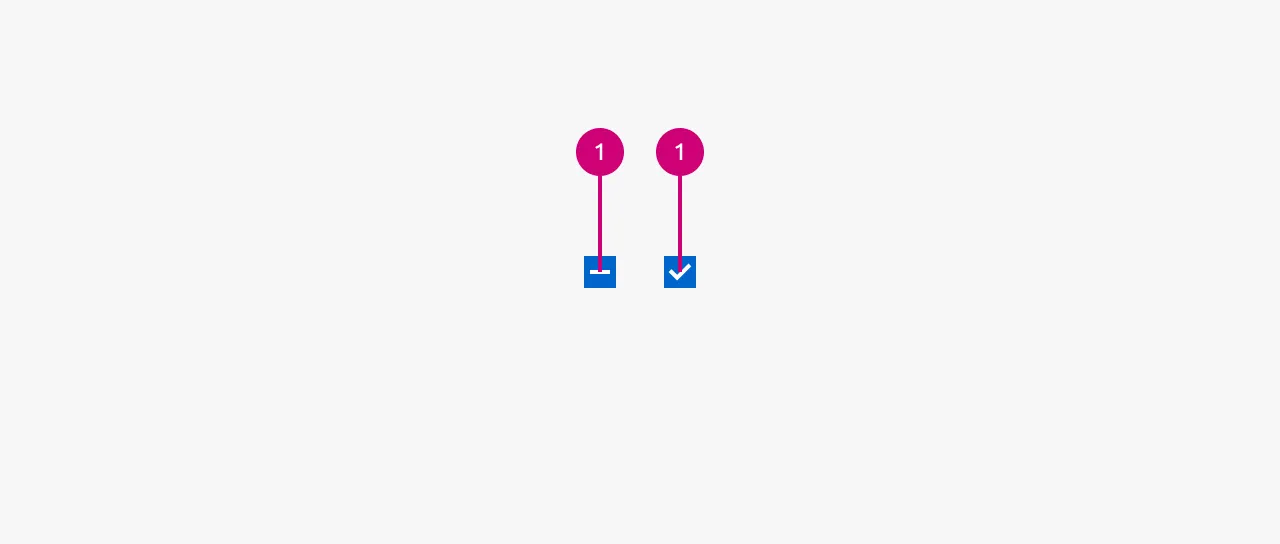
Usage
Checkboxes are used to select none, one or more options from a list or to enable/disable specific settings. Each checkbox operates independently of others.
They are commonly found in data tables for row selection, filter interfaces, and settings forms where users need to toggle features on or off.
Unlike switches, checkboxes typically require user confirmation to take effect. When users check or uncheck a checkbox, the change is usually applied only after they perform an action such as clicking a "Save" or "Apply" Button. In contrast, Switches provide immediate feedback and apply changes instantly without requiring additional confirmation.
In data tables
In data Table, include a checkbox in the header row to control all row selections. This header checkbox should display different states based on the current selection:
- Child-selected state: When some, but not all, Table rows are selected
- Checked state: Only when all rows in the Table are selected
- Unchecked state: When no rows are selected
When to use
- Selecting multiple items from a list or Table
- Enabling or disabling features (e.g. in a form)
- When requiring user acknowledgment of something (e.g. accepting TOS)
- Filtering content where changes should be applied deliberately
- The selection state needs to be confirmed before taking effect
When not to use
Properties
| Name | Type | Required | Description | Constraint | Options | Default option |
|---|---|---|---|---|---|---|
| Checked | single select | No | In which checked state the checkbox currently is in. | - | unchecked, checked, child checked | unchecked |
| State | single select | No | The state the checkbox is currently in. Note that in the checked and child checked state there is no hover effect. | - | default, hover, disabled | default |
Change log
| Who | When | What |
|---|---|---|
| Maximilian Blazek | 21.11.2025 | Initial commit |
| Maximilian Blazek | 13.02.2026 | Add links |