
Code snippet
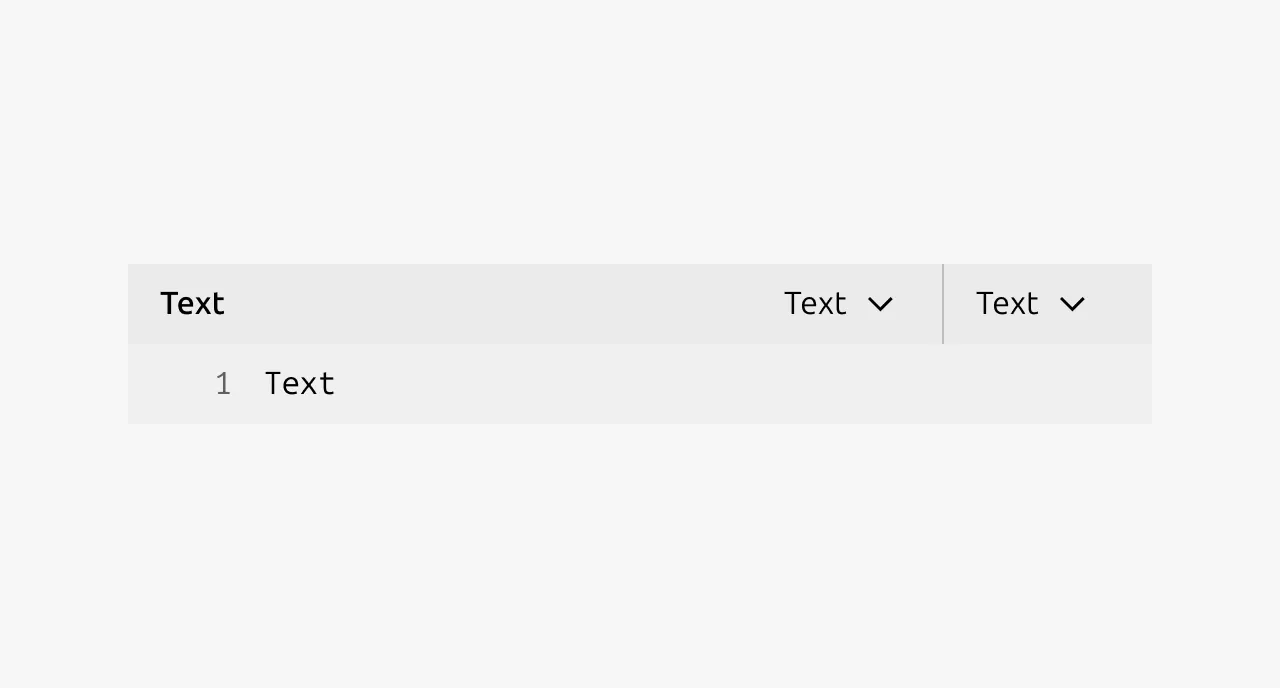
The code snippet component displays multi-line or complex code, commands, and technical content that requires distinct visual treatment from surrounding content. This covers full code files, terminal commands, and their output. It supports showing code in multiple languages and different versions of a product or library. For single-line code, use the Code component's inline variant instead.


Anatomy
Usage
Use code snippet to display complex or lengthy code, commands, and technical content that benefits from features such as syntax highlighting, line numbers, and language or version selection. Always provide surrounding context that explains how the displayed code is relevant to the reader or the page content.
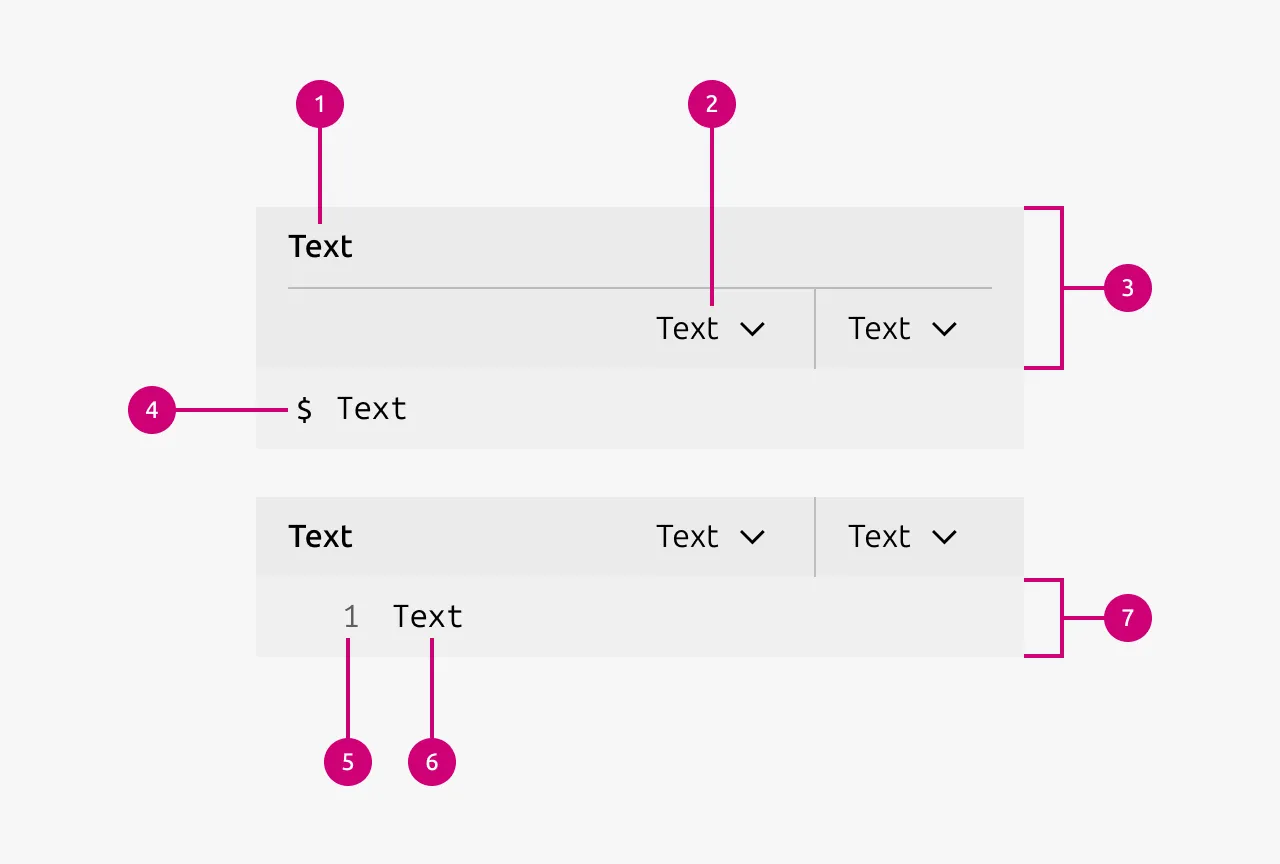
Keep titles short and descriptive of the type of code the reader can expect in the content area.
When to use
- The code is multi-line and benefits from syntax highlighting or correct indentation.
- The content needs to be presented in multiple languages.
- The content needs to be presented across different versions of a product or library, such as a command with different syntax between versions.
- Line numbers would help the reader navigate or reference the code.
- You need to display a full code file.
When not to use
- For inline code references within running text. Use the Code component's inline variant instead.
- For log output or simple preformatted text. Use the Code component's code block variant instead.
- As a code editor. Code snippet is read-only and should not be made editable. As of now the design system does not provide a code editor.
Overflow and max height
Code snippets can either wrap long lines or allow horizontal overflow with scrolling.
Prefer horizontal overflow when:
- Code is meant to be copied and executed exactly as shown.
- Indentation carries syntactic meaning, such as in Python or YAML.
- Content is diagnostic, such as log output with column-based formatting.
Prefer wrapping when readability matters more than preserving exact formatting, such as in illustrative pseudocode or conceptual examples.
Do not allow a code snippet to grow vertically without limit. Set a sensible max height that suits the surrounding content.
Terminal indicator
When using the code snippet to show terminal commands enable the terminal indicator. This indicates to the user that the command should be used in a terminal.
Line numbers
Line numbers provide positional references within the displayed code. They help the reader identify, discuss, and navigate to specific lines, which is particularly useful in longer code examples or when documentation references a specific part of the code.
Enable line numbers when the code is long enough that readers may need to reference or locate specific lines. Disable them for short examples where the added visual weight provides no benefit.
Property selectors
Property selectors allow the reader to switch between different representations of the same content, such as different programming languages or versions of a product or library. The code area updates to reflect the selected property.
Use property selectors only to present equivalent content in different forms. Do not use them to switch between unrelated code files or fundamentally different examples.
Do not use more than three property selectors on a single code snippet.
If a property selector switches between programming languages, ensure the syntax highlighting updates to match the selected language.
Properties
| Name | Type | Required | Description | Constraint | Options | Default option |
|---|---|---|---|---|---|---|
| Heading | string | Yes | Descriptive title for the whole code snippet | - | - | - |
| Property selector options | object | No | The available property selectors and their options | - | - | - |
| Line indicator | single select | Yes | Whether the line has command indicators or numbers | - | None, terminal-indicator, line-numbers | None |
| Code | string | Yes | The code content to show. | - | - | - |
| Line wrapping | boolean | No | Wether to wrap the lines in the code or not. | - | True, False | False |
Change log
| Who | When | What |
|---|---|---|
| Daniel Mutis | 21.11.2025 | Initial commit |
| Maximilian Blazek | 02.03.2026 | Revised the description and usage, added properties table |